You can transfer Google Authenticator to a new phone in two ways: sign in to the same Google Account to synchronize your saved codes, or manually export the accounts from your old phone and scan the generated QR code with the new device.
If your old phone is still available, complete the transfer before deleting the app, resetting the device, or giving the phone to someone else. After the transfer, test your new verification codes on important accounts such as Gate before removing any data from the old phone.
If your old phone has been lost, damaged, or erased, you cannot use the QR code export method. You will need to restore synchronized codes, use a saved setup key or backup method, or complete the account recovery process for each affected service.
What Is Google Authenticator?
Google Authenticator is a two-factor authentication app that generates time-based one-time passwords, commonly known as TOTP codes. These temporary codes add a second verification step when users sign in, withdraw assets, modify security settings, or perform other sensitive actions.
Authenticator codes can still be generated without mobile service or an internet connection. However, the phone’s date, time, and time zone must be correct because each code is valid only for a short period.
Google Authenticator can now synchronize saved codes across devices when users sign in to a Google Account. Users who prefer not to use account synchronization can store codes locally and transfer them manually between devices.
What Should You Prepare Before Transferring Google Authenticator?
Before starting, make sure that:
Your old phone can still open Google Authenticator;
Google Authenticator is installed on the new phone;
Both devices are protected with a PIN, password, or biometric lock;
You can sign in to important accounts after the transfer;
Backup codes or recovery methods are available where possible.
Do not take screenshots of Authenticator QR codes, setup keys, or recovery keys. Anyone who obtains this information may be able to generate valid verification codes for the associated account.
You should also avoid sending an export QR code through email, cloud storage, messaging apps, or social media. Scan it directly from the old phone to the new phone in a private location.
Method 1: Transfer Google Authenticator Through Google Account Sync
If your Authenticator codes are already saved to a Google Account, transferring them may only require signing in to the same account on the new phone, and this cloud sync method is typically faster than exporting and scanning QR codes manually.
Step 1: Check Sync on the Old Phone
Open Google Authenticator on the old phone and check the profile icon near the top of the screen. Confirm that you are signed in to the intended Google Account and that the codes are being saved to that account.
Users may have more than one Google Account, so check which account contains the required verification codes.
Step 2: Install Google Authenticator on the New Phone
Download Google Authenticator from the official app store on the new device. Open the app and sign in using the same Google Account selected on the old phone.
The synchronized verification codes should appear automatically. Google states that Authenticator codes can be synchronized across devices by signing in to the same Google Account.
Step 3: Test the New Codes
Do not immediately delete the app from the old phone. First, use the new phone to sign in to Gate or another important account and confirm that the code is accepted.
Make sure you select the correct account entry and enter the code before it expires. If several entries have similar names, confirm the associated email address or account label.
Method 2: Manually Transfer Google Authenticator With a QR Code
Use this method when your codes are stored locally, you do not want to use Google Account synchronization, or the codes do not automatically appear on the new phone.
Step 1: Open the Transfer Tool on the Old Phone
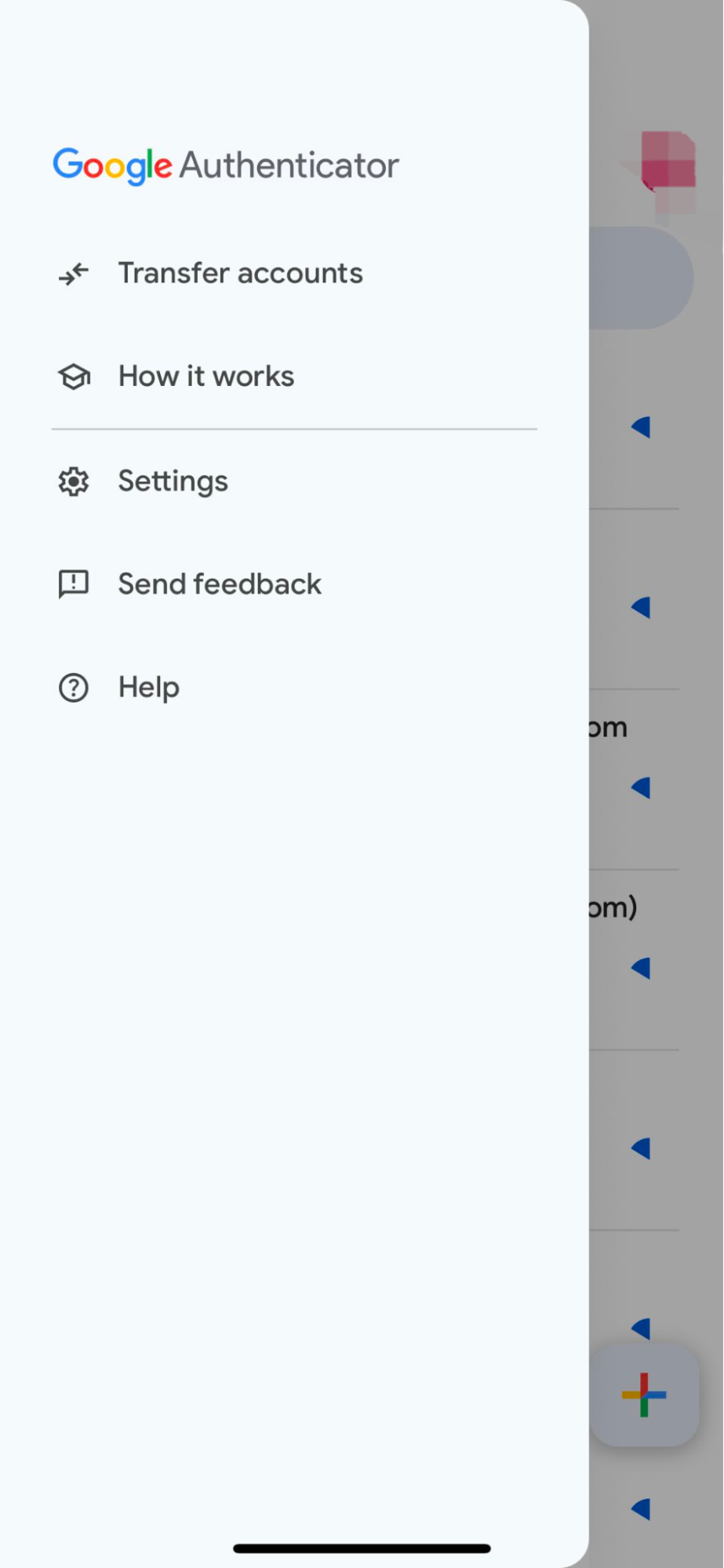
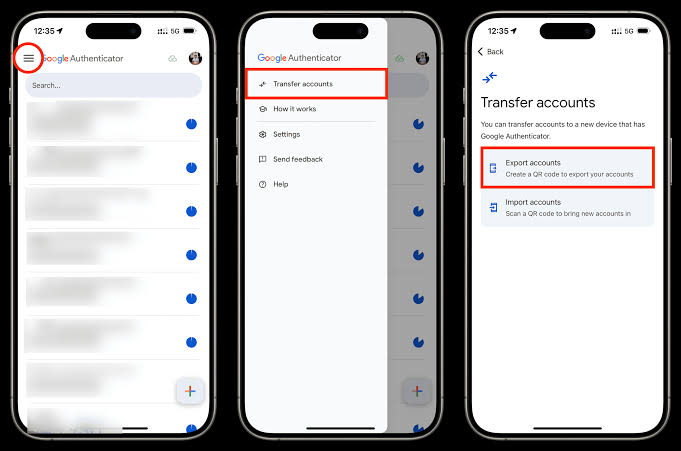
Open Google Authenticator on the old device, enter its menu, and select:
Transfer accounts → Export accounts
You may be asked to unlock the phone before continuing.
Step 2: Select the Accounts to Export
Select the accounts you want to move and continue to the next screen. Google Authenticator will generate one or more QR codes.
If many accounts are selected, the app may create several QR codes. Keep the old phone on this screen while completing the import.
Step 3: Import the Accounts on the New Phone
Open Google Authenticator on the new phone and select:
Transfer accounts → Import accounts → Scan QR code
Use the new phone to scan each QR code displayed on the old device. After scanning, the imported account entries and verification codes should appear on the new phone.
Step 4: Confirm That the Transfer Worked
Test at least one important account using a code generated on the new phone. For Gate users, sign in or open a security verification page and confirm that the new code works correctly.
Codes may continue to appear on both devices after a manual transfer. This is expected because both apps hold the same authentication secret. Remove the old copy only after confirming that the new phone works.
Step 5: Securely Remove the Old Device
After all required accounts have been tested:
Remove the relevant Authenticator entries from the old phone;
Sign out of Google Authenticator if synchronization was enabled;
Remove the old phone from trusted account devices where appropriate;
Erase the device before selling, recycling, or giving it away.
Deleting a synchronized Authenticator entry may also delete it from other synchronized devices. Check the active account and sync status carefully before removing codes.
How to Restore an Account With a Setup Key
Some services provide a setup key or recovery key when Authenticator is first enabled. If you securely saved that key, you may be able to add the account manually on the new phone.
Open Google Authenticator, select the option to add a new account, and choose manual entry or enter a setup key. Add an identifiable account name and enter the key exactly as originally provided.
A setup key is highly sensitive. It can be used to reproduce valid verification codes, so it should never be shared, stored in an unprotected screenshot, or entered on an untrusted website.
The availability and wording of this method depend on the account service. Follow the official instructions of the platform whose verification code you are restoring.
How to Transfer Google Authenticator for a Gate Account
Transferring the Google Authenticator entry between phones does not normally require changing the security settings in the Gate account. Once the same authentication secret has been imported or synchronized, the new phone should generate valid Gate verification codes.
After the transfer:
Open the Gate login or security verification page;
Find the Gate entry in Google Authenticator;
Enter the current six-digit code before it expires;
Confirm that the login or verification succeeds;
Keep the old phone temporarily until the test is complete.
If you want to replace the existing Gate authentication binding rather than simply transfer the same code, use Gate’s Security Settings and follow the Google Authenticator bind or unbind process shown in the current interface.
What If the Old Phone Is Lost or Unavailable?
If your codes were synchronized with a Google Account, install Google Authenticator on the new device and sign in to the same Google Account. The saved codes may then appear automatically.
If the codes were stored only on the lost device, you cannot generate an export QR code. Try another recovery method provided by the affected service, such as:
A saved backup code;
A passkey or security key;
Email or phone verification;
A saved Authenticator setup key;
An account recovery or security reset process.
For a Gate account, users who can still log in can open the Security Center and submit a security reset request. Users who cannot complete verification on the web can use the Gate App, select Unable toVerify on the verification page, and follow the account recovery instructions. Gate states that submitted reset requests are generally reviewed within 24 hours.
If the old phone was lost or stolen, remotely lock or erase it where possible. Users who synchronized Authenticator codes should also review the devices connected to their Google Account. Google advises removing access to a lost device or reconfiguring Authenticator for affected services when synchronization was not enabled.
Why Is the Google Authenticator Code Not Working After Transfer?
An Authenticator code may fail for several common reasons:
The code expired before it was entered;
The wrong account entry was selected;
The phone’s date, time, or time zone is incorrect;
The account was imported more than once and the wrong copy was used;
The service’s Authenticator binding was changed after the export;
The transfer did not include the required account.
Google Authenticator version 7.0 no longer includes the previous in-app time correction setting. The app now relies on the phone operating system’s time settings. Enable automatic date, time, and time zone settings, then try again with a newly generated code.
For Gate, verify that you are entering the code from the correct Gate account entry. If the problem continues, use Gate’s official security reset or account recovery process rather than repeatedly entering expired or incorrect codes.
Security Tips After Moving Google Authenticator
After completing the transfer, review the security of both the Authenticator app and the accounts it protects.
Enable Privacy Screen in Google Authenticator so that opening the app requires a device PIN, pattern, or biometric verification. Google also recommends maintaining additional two-step verification methods to reduce the chance of being locked out.
Keep backup codes in a secure offline location and replace them if they may have been exposed. Google allows users to revoke old backup codes and generate new ones.
Never provide Authenticator codes, QR codes, setup keys, backup codes, private keys, or seed phrases to customer support representatives or other users. A legitimate support process may ask you to verify your identity, but it should not require access to these secrets.
Summary
Google Authenticator can be transferred to a new phone through Google Account synchronization or by manually exporting and importing accounts with a QR code.
When the old phone is available, keep it until the new device has been tested successfully. Do not save screenshots of QR codes or setup keys, and do not erase the old device before confirming access to important accounts.
If the old phone is unavailable, use synchronized codes, backup codes, a saved setup key, or the account recovery process provided by each service. Gate users can use the Security Center or the Unable toVerify option in the Gate App when Authenticator access has been lost.
FAQ
Can Google Authenticator Codes Transfer Automatically to a New Phone?
Yes. If the codes are saved to a Google Account, signing in to the same account in Google Authenticator on the new phone can synchronize them automatically.
Can I Transfer Google Authenticator Without the Old Phone?
Only if the codes were synchronized, you saved the original setup key, or the protected account provides another recovery method. Manual QR code export requires access to the old phone.
Will Transferring Google Authenticator Disable It on the Old Phone?
No. A manual transfer usually leaves valid codes on both devices. Remove the old entries only after confirming that the new phone works.
Is It Safe to Take a Screenshot of the Transfer QR Code?
No. The QR code contains sensitive authentication information. Anyone who obtains it may be able to generate valid codes for the transferred accounts.
Why Are the Codes on Both Phones the Same?
Both devices contain the same TOTP secret, so they generate the same time-based code. This is normal after a manual transfer.
What Should I Do If My Gate Authenticator Code No Longer Works?
Check the account entry and automatic phone time settings first. If access cannot be restored, use Gate’s Security Center or select Unable to Verify in the Gate App to submit a reset request.
Author: Max
Reviewer(s): Carlton
Disclaimer
* The information is not intended to be and does not constitute financial advice or any other recommendation of any sort offered or endorsed by Gate.
* This article may not be reproduced, transmitted or copied without referencing Gate. Contravention is an infringement of Copyright Act and may be subject to legal action.
Stablecoins were originally designed as dollar substitutes within exchanges, primarily used for asset pricing and trade settlement. As on-chain financial ecosystems have matured, their role has expanded beyond simple payments to include collateral assets, cross-chain liquidity mediums, and unified settlement units. In particular, as AI systems and automated agents begin to participate directly in economic activity, demand has risen sharply for programmable value units capable of instant settlement. This shift is pushing stablecoins toward the role of foundational financial infrastructure.
In the competition for DeFi liquidity, high-inflation mining alone is no longer enough to build lasting advantages. Aerodrome applies the ve(3,3) economic model to redesign token emissions, voting mechanisms, and revenue distribution, creating a liquidity flywheel centered on governance and cash flow. This article examines AERO tokenomics, the veAERO locking mechanism, and protocol revenue models to explain how Aerodrome builds a sustainable DeFi economic system.
PAXG (Pax Gold) is a tokenized asset backed by physical gold, issued by the fintech company Paxos and traded on the Ethereum blockchain as an ERC-20 token. The core concept is to tokenize physical gold on-chain, with each PAXG token representing ownership of a certain amount of gold. This structure enables investors to hold and trade gold in the form of a digital asset.
AERO is the native token of Aerodrome Finance, a core decentralized exchange and liquidity protocol in the Base ecosystem. It is primarily used for liquidity incentives and ecosystem operations. veAERO is a governance NFT that users receive by locking AERO, representing both voting power and the right to share protocol revenue. Through a dual track structure of AERO as a utility token and veAERO as a governance credential, Aerodrome separates liquidity usage value from long term governance power, allowing participants to act as liquidity providers, governance decision makers, and revenue sharers within the same system.
PAXG (Pax Gold) is a tokenized asset backed by physical gold reserves, launched by fintech firm Paxos and issued as an ERC-20 token on the Ethereum blockchain. The core concept is to digitally represent real-world gold assets, allowing investors to hold and trade gold via the blockchain network. Because each PAXG token corresponds to a specific quantity of physical gold, its price is theoretically expected to closely track the global gold market.
In the early stages of the crypto market, traditional stablecoins mainly relied on single-reserve or single-collateral models. Their primary focus was price stability and payment convenience, which allowed them to become foundational tools for on-chain trading and capital flows. As the market has entered a more mature financial phase, however, this structure has begun to reveal limitations, including high concentration risk and the difficulty of balancing liquidity with yield. These constraints have driven the evolution toward multi-layer collateral and portfolio-based designs, such as the dual-layer hybrid collateral architecture proposed by United Stables, which seeks to redefine the underlying logic of stable assets.